Filters
Filters allow further specification of products on a collection page. The standard Afosto template has the following filters available:
- Price
- Date added
To add multiple filters, the Afosto platform uses product specifications. Per product specifications can be created to further describe the product. Examples of product specifications are:
- nl color: red
- value_cm length: 30
- is refillable: yes
Read more about the naming requirements of product specifications here.
Adding a Specification
- Go to a product page to which specifications need to be added.
- Find the heading “Product Specification.”
- Click on “Add New Specification”
- Select “New Attribute”
- Enter a name for the new specification

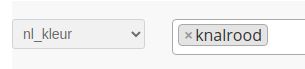
- Enter a value that applies to the specification
Clean Filters
Although the functionality of filtering in this way works very well, the Afosto platform gives the possibility of creating so-called ‘clean filters’.
When a filter is created in the way described above, an activated filter causes a new version of the collection page to be created.


This is exactly what the filter function is for. The downside is that this new version of the page cannot be indexed by search engines.
Better said, Google can’t see this new version, so we miss out on a lot of potential customers.
With the clean filters feature, we give the filter its own page with its own url. For example, after we create the clean filter, the url from the example above looks like this:


This url has no special characters, so search engines can crawl this page and show it in search results.
Caution! Only create clean filters for pages that have potential to be found by search engines. For example, people are much more likely to search for “Shoes red” instead of “Shoes size 42”. So it makes sense to create clean filters for the pages with the highest search volume.
Set up clean filters
After specifications have been added to products, it is important to choose which specifications will be shown as clean filters. This can be set under:
Apps -> Filter menu items -> Settings.


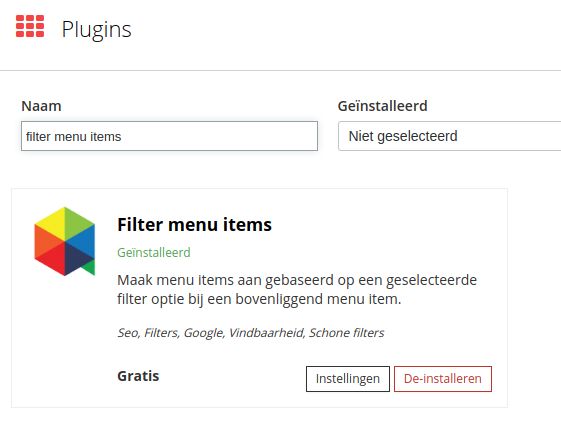

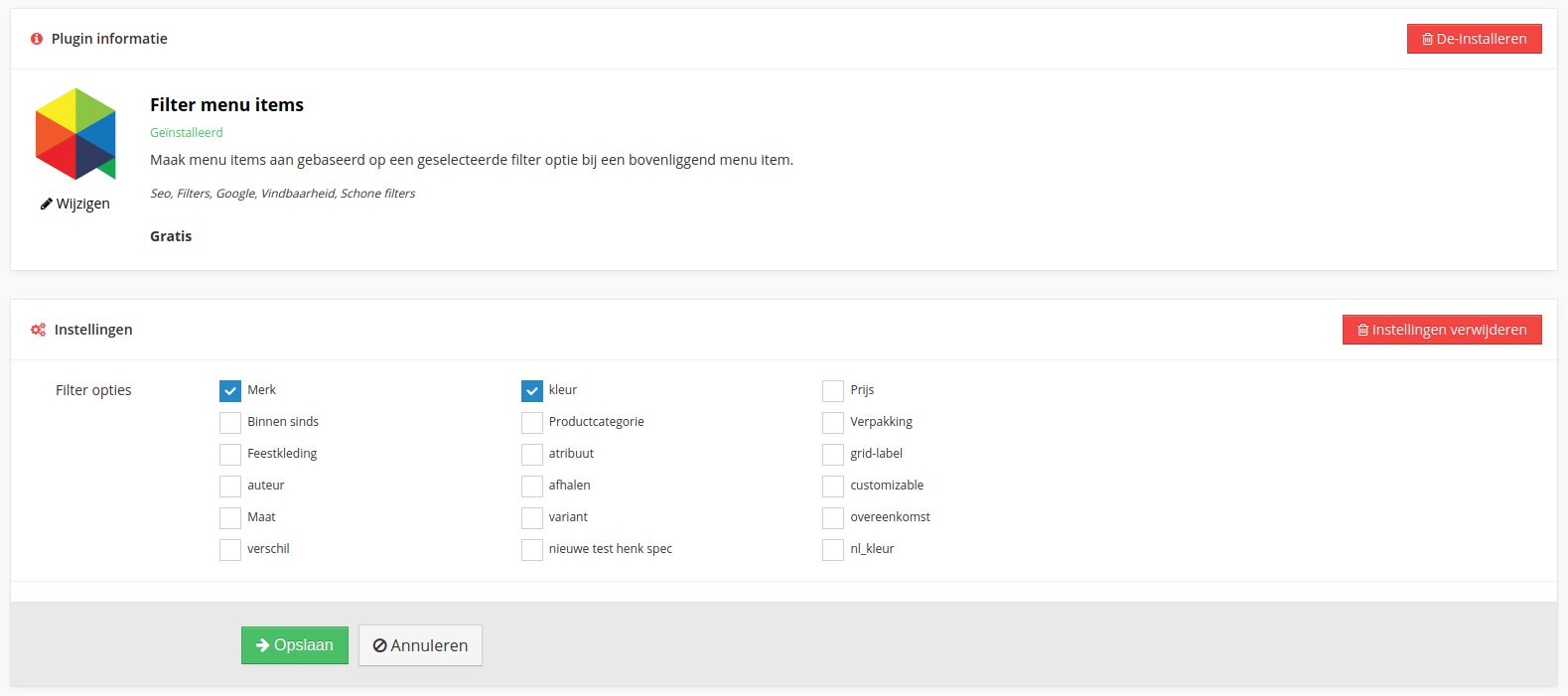
In the above example, specifications “Brand” and “Color” are selected as clean filter.
Note: The names of the specifications in the examples are not according to the requirements of specification names
Next, go to “Menus” and go to the appropriate collection page.


Scroll to “Clean Filter Options.”

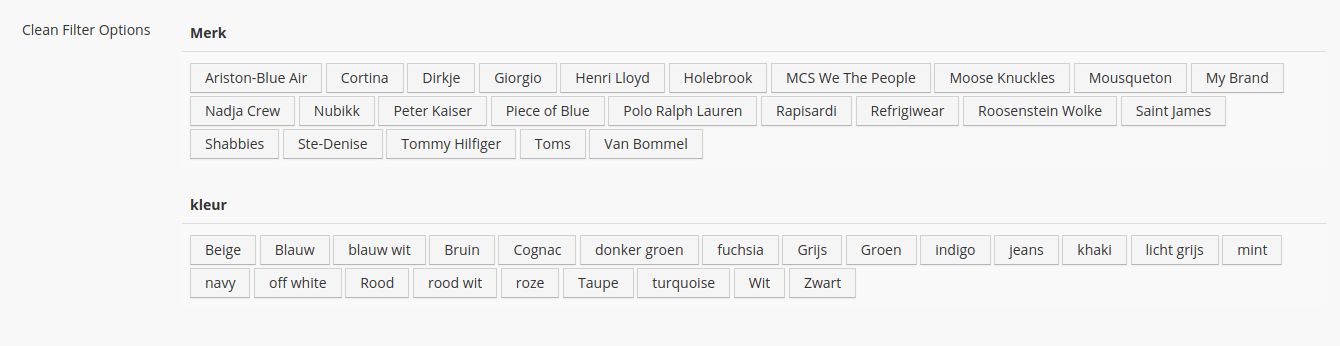
And click on a specification from which a clean filter should be created.
Label: This value determines the label of the page when it is placed in the menu
Title: This value is shown as the title of the tab in the browser
After this, the page can be modified as a normal page within Afosto.
The specification will now be shown in green under “Clean Filter Options” because the clean filter is active.


The url of the page will now look like this:
In “Red” the url still looks like this: